
Documentation
Use this flow Barcode Scanner component to build barcode scanning capabilities for your Experience Cloud Mobile Publisher App with clicks not code!

Barcode Scanner for Experience Cloud Mobile Publisher
As of: Summer '23
Authored By: George Abboud
Last Updated: 09/11/2023

Description
Use this flow Barcode Scanner component to build barcode scanning capabilities for your Experience Cloud Mobile Publisher App with clicks not code!
Disclaimer:
This package is free to use, but is not an official salesforce.com product, and should be considered a community project. The functionality is not officially tested or documented, and does not come with any support, warrantees, or updates. It is offered as-is.
AppExchange Listing URL
https://appexchange.salesforce.com/appxListingDetail?listingId=90a0402c-05bc-49a1-a931-5d7b64122fee
Open-Source Code
https://github.com/salesforce-experiencecloud/barcodescanner
Demo
Features
Barcode Scanner flow component to allow clicks, not code implementation of barcode scanning functionality within a flow to be used in Experience Cloud sites rendered within a Mobile Publisher app.
Flow template as a starting point to clone and build your own flow.
The full power and flexibility of Salesforce Flow to obtain a barcode value, and process it further based on the requirements of various use cases, like querying records that match, redirecting to a page based on the barcode value, etc.
Usage and Configuration
Create a Flow that uses the barcode scanner component
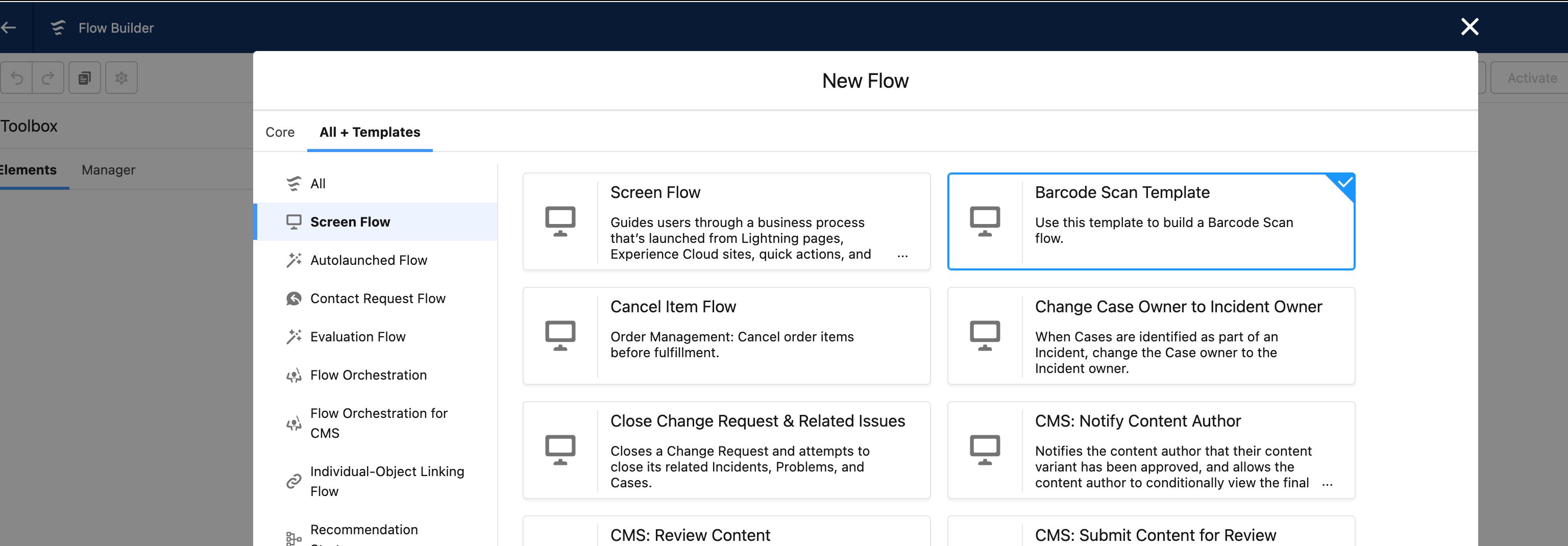
Optionally start from the Barcode Scan Template by selecting the All+Templates tab after pressing the New Flow button from the Salesforce Setup → Flows area.
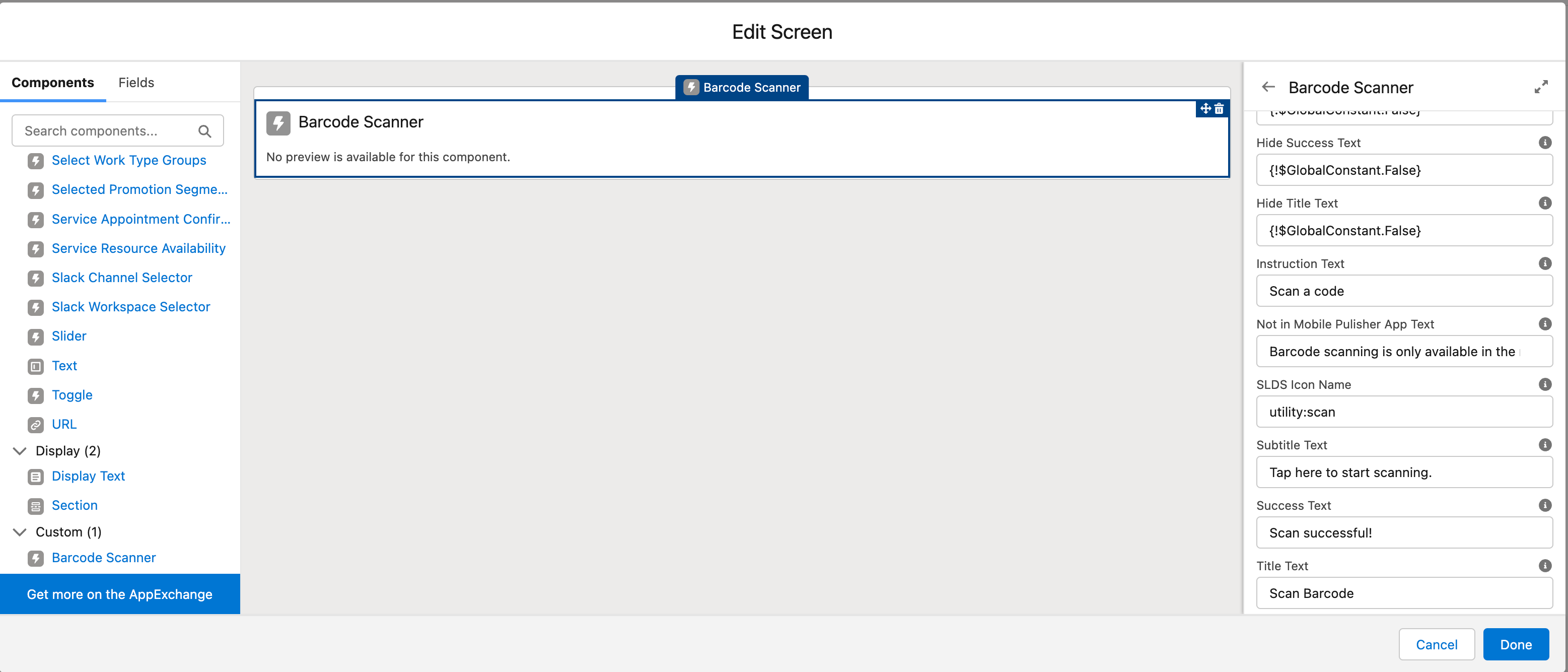
Next you should configure a screen step like the screenshot below.
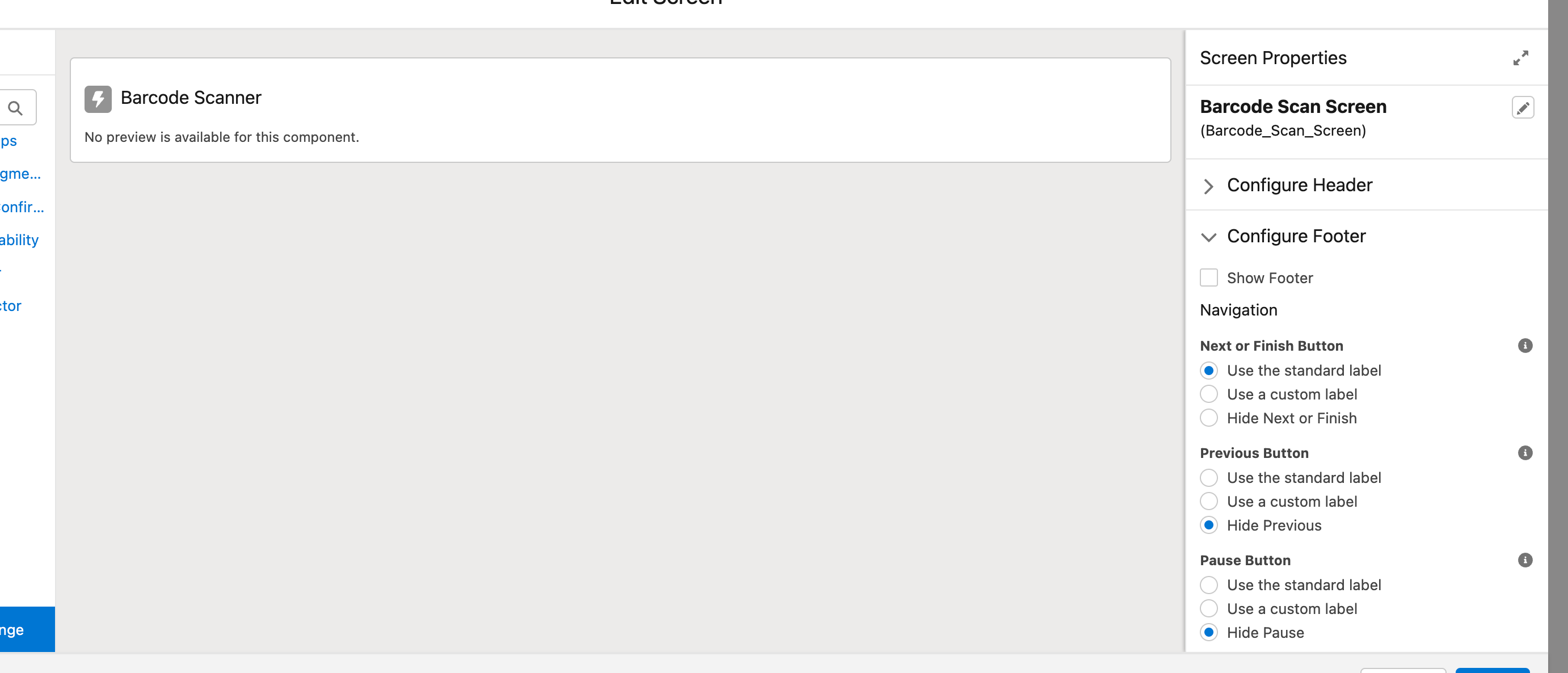
Hiding the header and footer is optional but recommended for a better user experience. Note: the Barcode Scanner component will navigate to the next step of the flow automatically upon successful scan of a barcode, however, this does require the Next or Finish Button option in the Configure Footer section to not be hidden as shown in the screenshot below.
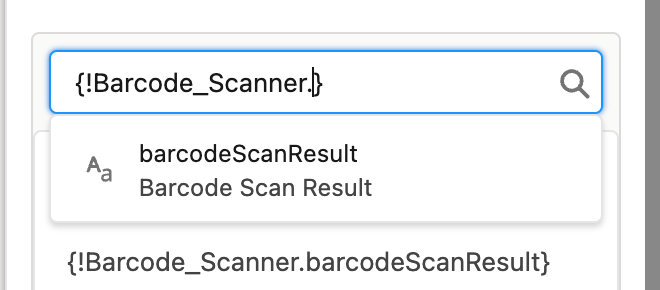
In the following flow steps, assuming the api name you gave the Barcode Scanner component instance is Barcode_Scanner, the output value of the scanned barcode is available for you to do further processing. The value can be referenced by {!Barcode_Scanner.barcodeScanResult} as shown in the screenshot below.
You can then use the value to query records, or pass into other components or actions in following screen steps.
Use the flow in Experience Builder
Once you’ve built your flow and activated it, you can then go to Experience Builder, drag/drop the Flow component to a page, and configure it to show the flow you just created.
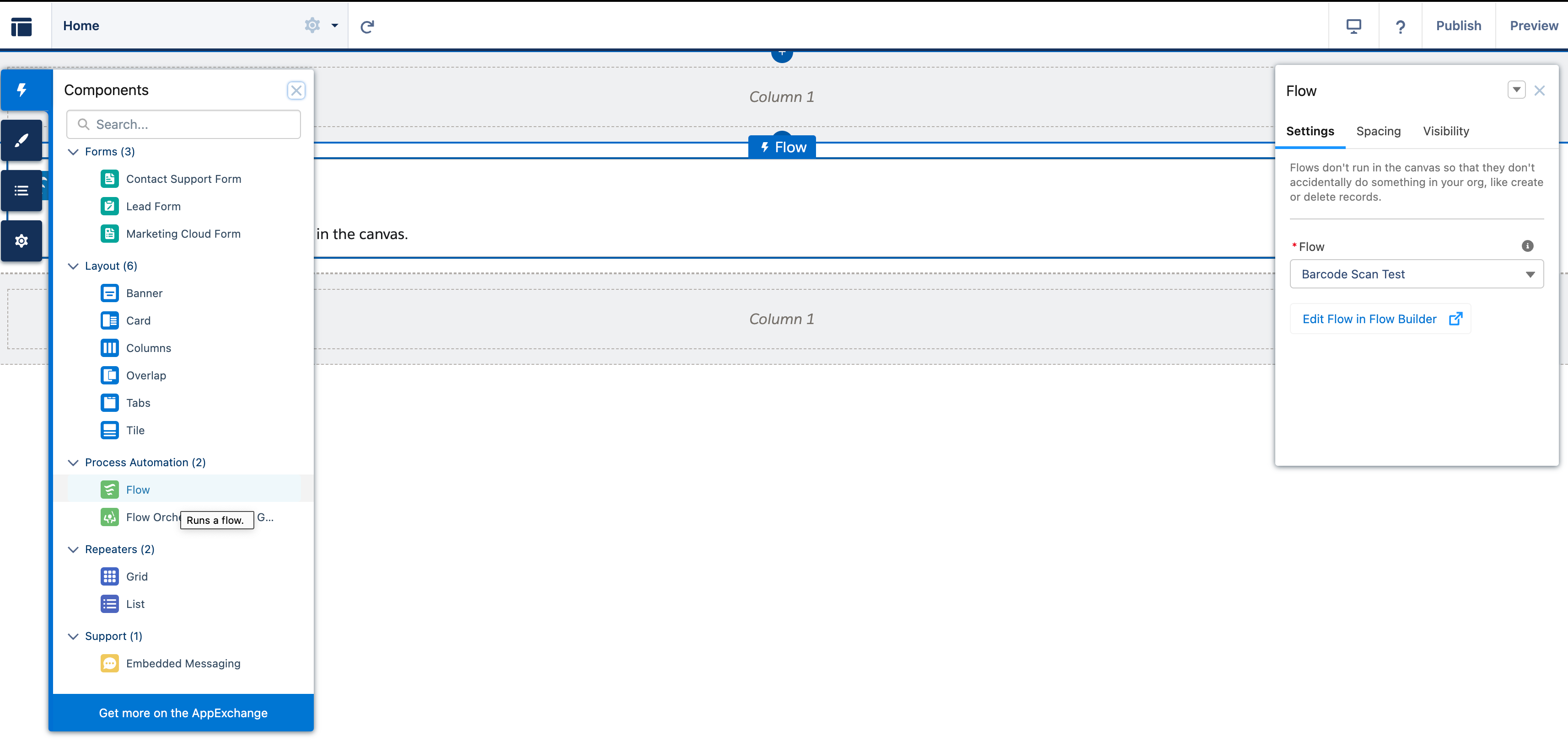
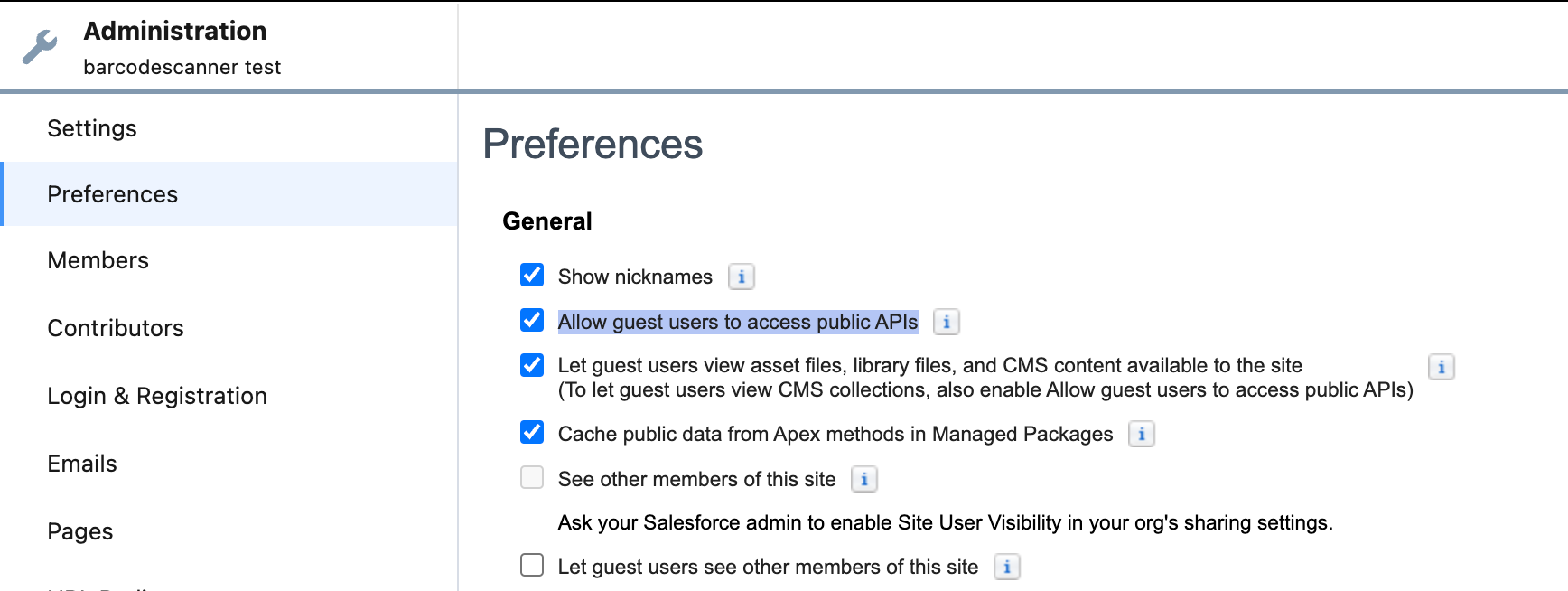
Note: That you will have to ensure that your users have the proper access to run the flow, including unauthenticated guest users. Unauthenticated Guest users will additionally need the Allow guest users to access public APIs checkbox to be checked from Workspaces → Administration → Preferences.
Test the Barcode Scanner Flow
Note: Don’t forget to publish your site!
Once you’ve created the flow and configured Experience Builder, if you navigate to the Experience Cloud site from a browser on your desktop, you will either see a message that Barcode scanning is only available in the mobile app, or nothing will render - this depends on how you’ve configured the Barcode Scanner component in your flow.
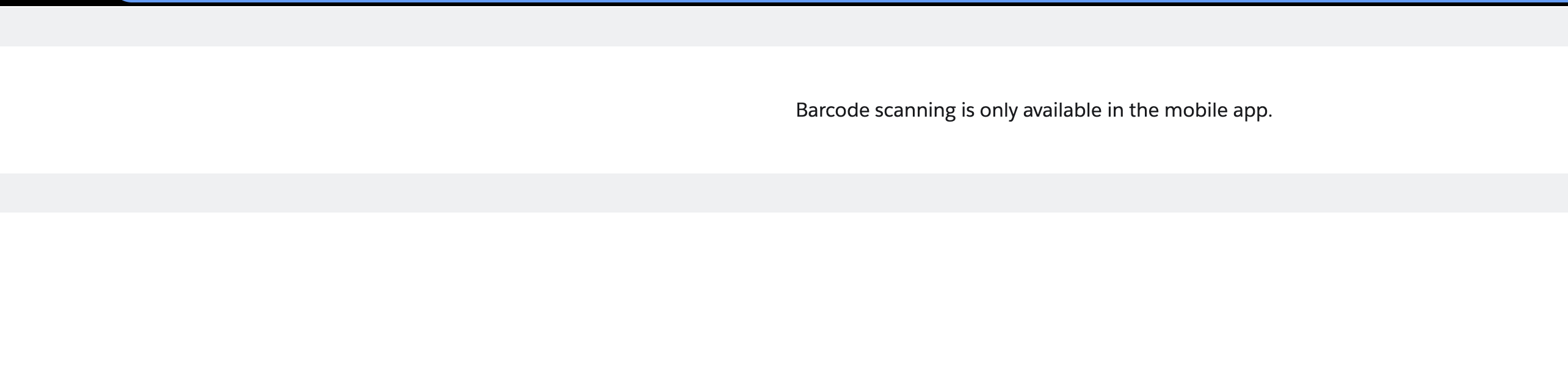
Since the Barcode Scanner component uses the Barcode Scanner native plugin, which only works on a mobile device running the Mobile Publisher app for Experience Cloud, you will need to access the site from the Mobile Publisher Playground app to be able to test.
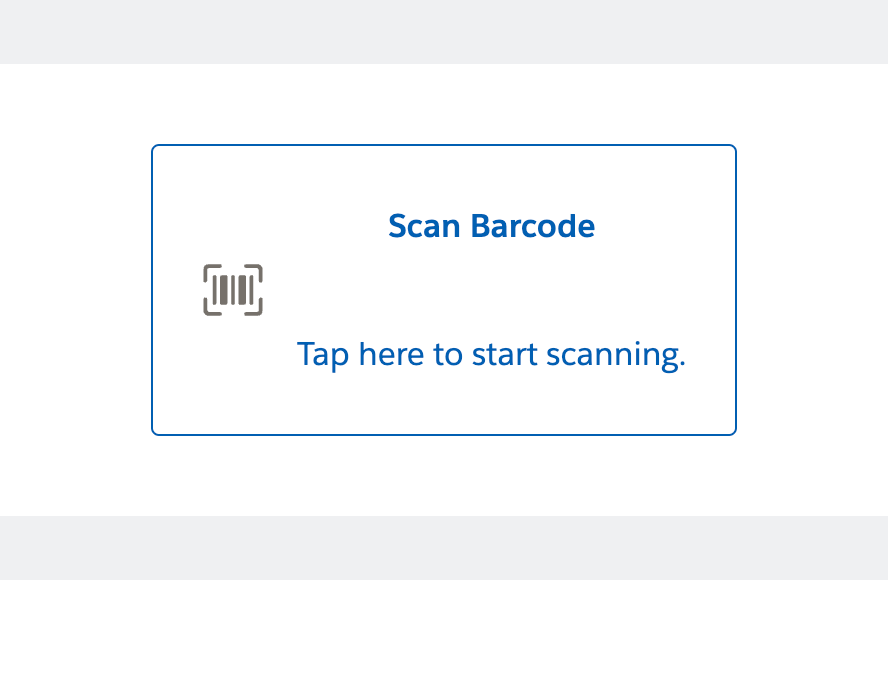
After you’ve downloaded the Playground app, you should be able to access the site and page where your flow is, and see the Barcode Scan button as shown in the screenshot below.
Barcode Scanner component for Salesforce Flow
Barcode Scanner Component Information
Component Label: Barcode Scanner
Component Aura API Name: barcodeScanner
Component LWC API Name: barcode-scanner
Component Namespace: barcodescanner
Barcode Scanner Component Properties
Camera Facing
Aura Property API Name: cameraFacing
LWC Property API Name: camera-facing
Type: String
Description: Use the front or back camera of the mobile device. Valid values are 'FRONT' or 'BACK'. Defaults to BACK
Hide Instruction Text
Aura Property API Name: hideInstructionText
LWC Property API Name: hide-instruction-text
Type: Boolean
Description: Hide text that provides instructions to the user while they are scanning with their camera
Hide Not In Mobile Publisher App Text
Aura Property API Name: hideNoMobilePublisherText
LWC Property API Name: hide-no-mobile-publisher-text
Type: Boolean
Description: Hide Text to display when viewing outside of Mobile Publisher app
Hide SLDS Icon Name
Aura Property API Name: hideSldsIconName
LWC Property API Name: hide-slds-icon-name
Type: Boolean
Description: Hide SLDS Icon name that renders to the left of the title and subtitle.
Hide Subtitle Text
Aura Property API Name: hideScanSubtitleText
LWC Property API Name: hide-scan-subtitle-text
Type: Boolean
Description: Hide subtitle text that shows up next to the icon below the title
Hide Success Text
Aura Property API Name: hideSuccessText
LWC Property API Name: hide-success-text
Type: Boolean
Description: Hide text that displays after a successful scan is completed
Hide Title Text
Aura Property API Name: hideScanTitleText
LWC Property API Name: hide-scan-title-text
Type: Boolean
Description: Hide title text that shows up next to the icon
Instruction Text
Aura Property API Name: instructionText
LWC Property API Name: instruction-text
Type: String
Description: Text to provide instructions to the user while they are scanning with their camera
Not in Mobile Publisher App Text
Aura Property API Name: noMobilePublisherText
LWC Property API Name: no-mobile-publisher-text
Type: String
Description: Text to display when viewing outside of Mobile Publisher app
SLDS Icon Name
Aura Property API Name: sldsIconName
LWC Property API Name: slds-icon-name
Type: String
Description: SLDS Icon name to render to the left of the title and subtitle. Ex: utility:scan
Subtitle Text
Aura Property API Name: scanSubtitleText
LWC Property API Name: scan-subtitle-text
Type: String
Description: Subtitle text that shows up next to the icon below the title
Success Text
Aura Property API Name: successText
LWC Property API Name: success-text
Type: String
Description: Text to display after a successful scan is completed
Title Text
Aura Property API Name: scanTitleText
LWC Property API Name: scan-title-text
Type: String
Description: Title text that shows up next to the icon